
Prescriptions in the Patient Timeline
View details of ePrescriptions submitted to eRx, such as prescribed date, current status, delivery method, recipient's address and other details.
Before you begin
Permissions:
- View Timeline
- View Patient
About this task
 Patient Timeline.
Procedure
To view details of the submitted ePrescription:
-
From the main menu, select
 Patient Search.
-
In the
 Search for patient field, start typing a
patient's name and select the required patient from the list.
Search for patient field, start typing a
patient's name and select the required patient from the list.
-
In the Patient Timeline, from the
Show filter, select
 Prescriptions.
-
From the Prescriptions list, locate the prescription for which
you want to view the delivery details.
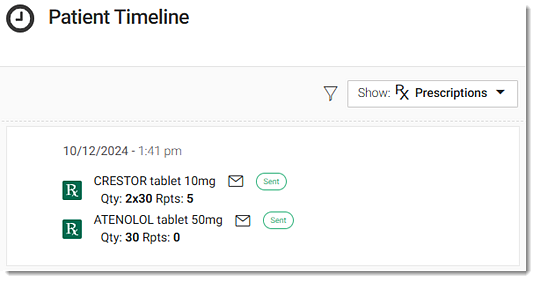
Tip:To view the recipient's address for SMS or Email delivery methods, hover your mouse over the delivery method icon. For more information about delivery method icons, see Delivery Method Icons.
Results
Patient Timeline. 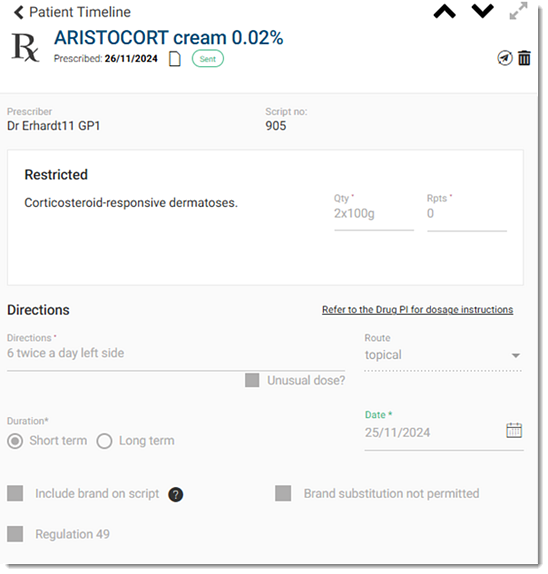
What to do next
In the Patient Timeline, if required:
Patient Timeline, if required:- To delete an ePrescription, click
 Delete. For more information, see Delete an ePrescription.
 - To resend an ePrescription, click
 Resend. For more information, see Resend ePrescriptions.Tip:If the patient does not meet the eligibility criteria to receive the electronic prescriptions, the resend and delete icons are inactive.
 - To copy the authority number for the
selected eprescription or the patient's Medicare card number, in the
Authority details section:
- In the Authority no. field, click
 Copy authority number.
 - In the Medicare field, click Copy Medicare card number.

Tip:The copied number is saved to your system clipboard. Paste the number into the required field or application. - In the Authority no. field, click